Product roadmaps that teams can actually follow
Use Timetoast to turn releases, milestones, overlaps, and trade-offs into a product roadmap that is easier to review, explain, and keep current as priorities shift.

Roadmap timeline example
Loading example...
Preview how grouped releases, milestones, and parallel work can read once a roadmap is organized for sharing and review.
Turn product priorities into a roadmap people can follow
If you are looking for a product roadmap timeline maker, the real challenge is keeping the roadmap useful after priorities start to move.
Many roadmaps start life in a slide deck or spreadsheet and stay there:
- They’re hard to update once priorities change
- Different teams keep their own versions
- Nobody is quite sure which version is the latest
The result: the roadmap turns into a one-off presentation instead of a day-to-day guide.
A roadmap timeline fixes a lot of this:
- It shows sequence – what happens first, and what comes next
- It shows overlaps – where work competes for the same people or budget
- It highlights milestones – not just a backlog of features
When your roadmap is a visual timeline, it becomes much easier to explain decisions, discuss trade-offs, and show where parallel tracks or timing conflicts need attention.
If you want a more detailed walkthrough, you can also read our guide to creating a roadmap timeline and follow along with the product roadmap template.

Shape priorities before the review
Use the grid view when you’re shaping the roadmap:
- Add and edit items quickly
- Sort by phase, owner, area, or status
- Bulk-update dates and fields before a roadmap review
The grid view feels familiar if you are used to spreadsheets, but it stays connected to your timeline views and works even better when you add custom fields for owner, phase, status, or area.

Keep complex roadmaps readable
Roadmaps can get busy quickly. Timetoast helps you keep them readable:
- Filter by phase (Discovery, Build, Beta, Launch)
- Filter by team or owner (Product, Engineering, Marketing)
- Filter by status (Upcoming, Planned, In Progress, Complete)
- Color-code items so patterns stand out at a glance
You might use one color set for phases and another for teams, then use grouping when you want parallel tracks to stand apart in the same roadmap review.
Work from one roadmap across product, leadership, and clients
Use Timetoast for product planning, leadership updates, or client-facing roadmaps. It keeps the same priorities visible in one shared workspace instead of spreading them across decks, docs, and screenshots, and collaboration keeps everyone looking at the same plan.
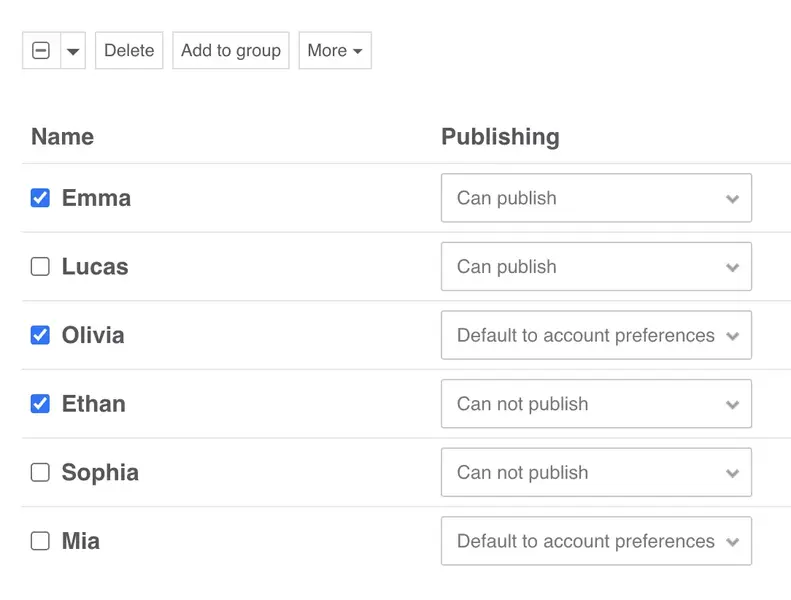
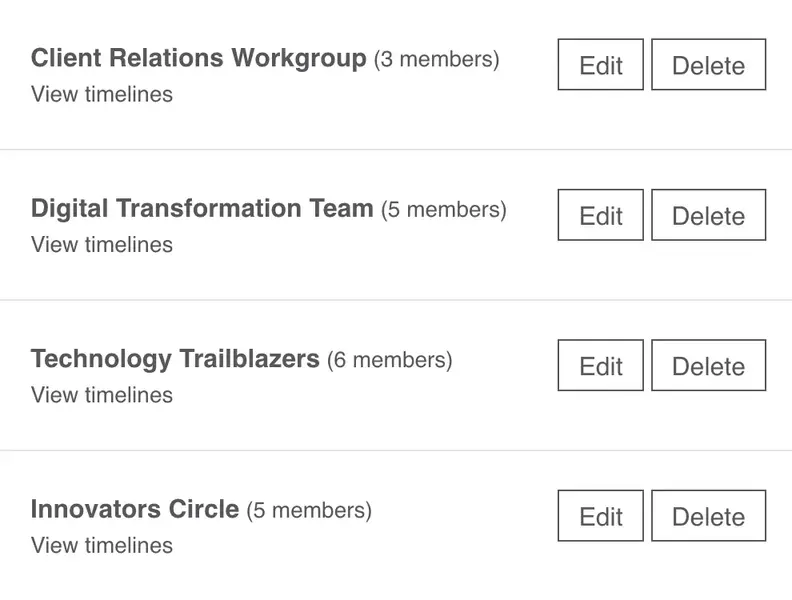
- Invite teammates and groups with clear roles for viewing, editing, and publishing
- A shared account workspace for all members of your account
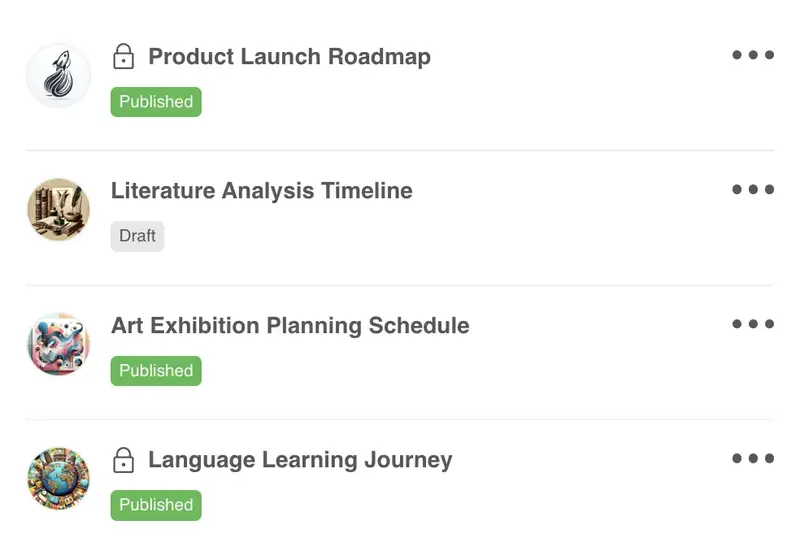
- Keep timelines private, shared, or public depending on who needs to see them
- Export your data when you need to report or move into other tools
- Account and permission controls that suit teams running real projects
A simple setup for roadmap planning
Here’s a simple structure you can use as a starting point. You can set this up yourself or start from the Product roadmap template in Timetoast.
-
Fields that match how your team works
A typical roadmap setup might include fields like:
- Item – the feature, initiative, or work item
- Phase – Concept, Discovery, Build, Beta, Launch
- Owner – a team or named person responsible for delivery
- Area – Web, Mobile, Infrastructure, Internal tooling
- Target window – a date or month range
- Status – Planned, In progress, Blocked, Done
- Notes – extra context, links, and decisions
You can rename or add fields to match your own language. If you think in quarters or seasons rather than dates, you can reflect that too.
-
Views for planning, leadership updates, and team follow-up
Over time you’ll probably create a few saved views over the same roadmap:
-
Planning view (grid)
All items. Sorted by phase or area. Used in weekly product or delivery meetings. -
Leadership view (horizontal timeline)
Only major initiatives and milestones. Filtered to this or next quarter. Color-coded by area or risk. -
Team view (grid or timeline)
Filtered by owner or squad. Shows everything that team cares about over the next few months.
You can switch between these views in a couple of clicks, without creating new documents.
-
Planning view (grid)
-
How roadmap reviews stay current
In a normal week you might:
- Update the grid after stand-ups or planning sessions – adjust status, owners, or target windows.
- Review the timeline in a weekly roadmap check-in – look at overlaps, risks, and key dates.
- Share a filtered view with stakeholders – for example, a leadership view showing only major initiatives this quarter.
The roadmap stays current because you’re editing the same project every time, not recreating slides.
Teams that use roadmap timelines
Roadmap timelines are most useful when one plan needs to work for product teams, leaders, and outside stakeholders.
-
Product managers
- Keep a single roadmap for product and tech
- Switch easily between planning details and presentation views
- Use fields for phase, area, and status that match how you already work
-
Founders and small product teams
- Build a roadmap that doesn’t live in a deck you forget to update
- Show plans to investors, partners, or advisors in a simple, visual way
- Start from a template instead of designing your own format
-
Product consultancies and client teams
- Create a shared roadmap for each client project
- Use filters to show only the work that’s in-scope for a given phase
- Share read-only views so clients can see progress without needing access to every internal detail
Why teams move roadmaps out of decks
Timetoast helps roadmap teams:
- Turn priorities and releases into a clear visual roadmap
- Show overlaps, trade-offs, and parallel tracks more clearly
- Keep one roadmap instead of scattered decks and docs
- Update dates and status in a few clicks instead of redrawing slides
- Start faster with roadmap and launch templates you can adapt
Templates for roadmap and release planning
You can create a roadmap from scratch or start with a template built for release planning, launches, and shared visibility.
-
Good places to start:
-
Product Roadmap
Plan initiatives by phase, owner, and area, and show how they line up over the coming months. -
Product Launch
Coordinate marketing, product, and operational tasks leading up to launch day and beyond. -
Client Onboarding
Map the key steps from contract signature to steady-state service for each new client. -
Blank Project
Start with a clean slate and add only the fields and views you need for your roadmap.
-
Product Roadmap
-
What each template includes:
- Helpful default fields
- Sample items you can edit or remove
- A grid view and timeline view ready to use from day one
Timelines for different use cases
See how Timetoast supports roadmaps, projects, history, teaching, biographies, and legal chronologies.
Project Management
Turn tasks, milestones, and deadlines into one clear shared timeline.
History
Place events, eras, and figures in chronological context with a clear history timeline.
Education
Help students see sequence, comparison, and context across lessons and topics.
Biographies
Turn life events into a clear narrative with milestones, patterns, and context.
Legal Cases
Build defensible chronologies for events, evidence, participants, and deadlines.