Project timelines that keep plans clear and current
Use Timetoast to turn tasks, deadlines, and milestones into one shared project timeline. Teams can see what is happening now, what comes next, and where work may overlap without the overhead of a heavy PM suite.

Project timeline example
Loading example...
See how milestones and delivery phases can read once a project plan is organized for updates and reviews.
Keep project plans current without heavy tools
If you are looking for a project timeline maker, the hard part is usually not starting the plan. It is keeping that plan clear and current once work begins.
Many projects start in slide decks, spreadsheets, or task tools and never quite match reality:
- Milestones, tasks, and owners are spread across different documents
- People work from their own version of the plan
- Updating timelines takes too long once things start to move
The result: nobody is fully sure what’s happening this week, next month, or at launch.
A project timeline keeps everyone aligned:
- Shows what needs to happen first, next, and later
- Makes dependencies and overlaps easier to spot
- Gives teams and stakeholders a single, visual source of truth
With Timetoast, you manage one project and switch views depending on whether you’re planning, tracking, or reporting.

Build a working plan the team can actually use
Use the grid view when you’re planning or re-planning work:
- Add key milestones, tasks, and checkpoints in seconds
- Use custom fields for owner, team, status, phase, and risk
- Filter by phase or owner to check for gaps and bottlenecks
Make changes in the grid, then use the same project in reviews, status updates, and client conversations.

Run updates from the same timeline you plan in
Switch to a timeline view when you want to show how work lines up:
- A horizontal timeline is ideal for phase reviews, grouped lanes, and leadership updates
- A vertical timeline works well for detailed lists on screens or shared links
You keep editing the same project, while Timetoast keeps grid and timeline views in sync. That is especially helpful when collaboration matters and different audiences need different levels of detail.

Keep busy delivery plans readable
As projects grow, timelines can fill up fast. Timetoast helps you keep them clear:
- Filter by team or owner to see who is doing what
- Filter by phase to focus on discovery, build, or launch
- Color-code items by status, risk, or area so patterns stand out
You can adjust filters, colors, and grouping depending on whether you are planning, reporting, or reviewing risks.
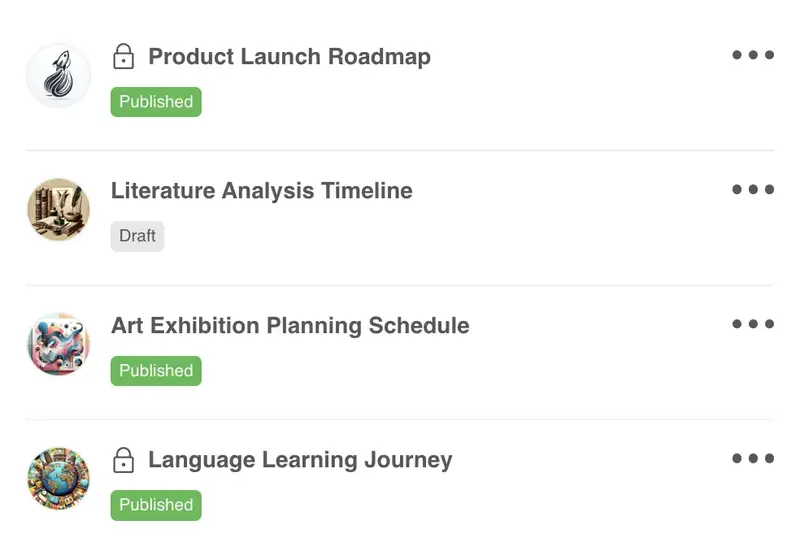
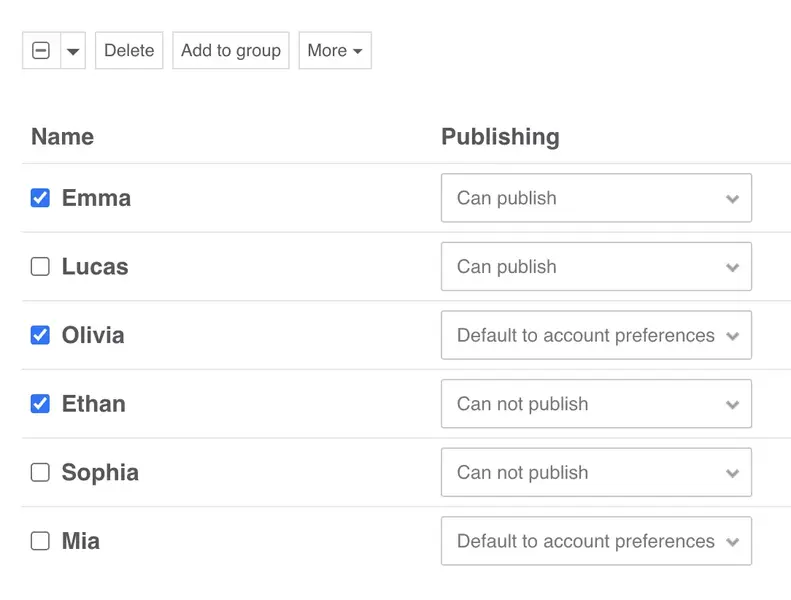
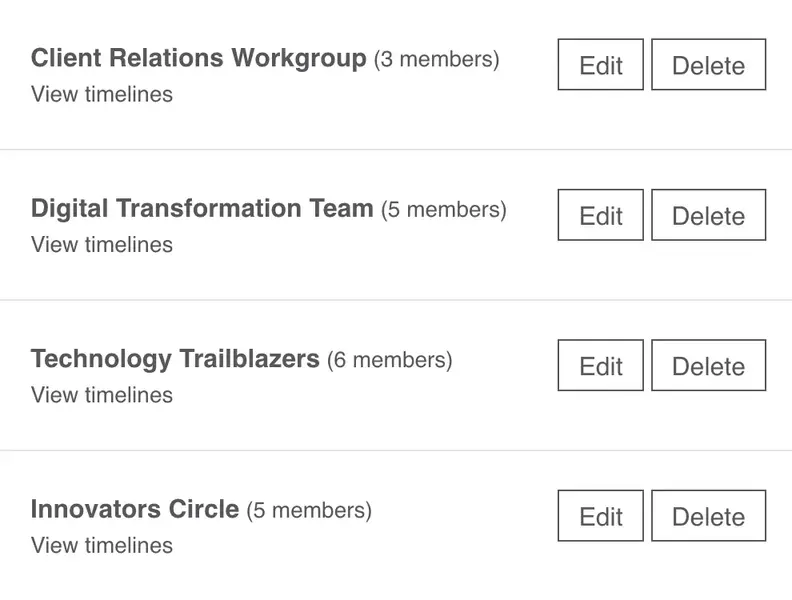
Keep internal teams and external stakeholders on the same page
Use Timetoast for internal delivery plans, client work, and cross-team initiatives. It keeps the schedule readable for the people doing the work and the people reviewing progress.
- Invite teammates and clients with clear view and edit rights
- A shared workspace so everyone sees the same plan
- Keep timelines private, share them with a group, or create public views when needed
- Embed views in client portals or other tools
A practical setup for delivery work
Here’s a simple structure you can use as a starting point. You can set this up yourself or start from our project templates.
-
Fields that match how you manage work
A typical project timeline might include fields like:
- Item – the task, milestone, or deliverable
- Phase – Discovery, Planning, Build, Launch, BAU
- Owner – a team or named person responsible
- Area – Product, Marketing, Operations, Client success
- Target window – a date or date range
- Status – Planned, In progress, Blocked, Done
- Notes – extra context, decisions, and links
You can rename or add fields to match your own project language and workflow.
-
Views for planning, reporting, and team check-ins
Over time you’ll probably create a few saved views over the same project:
-
Planning view (grid)
All items. Sorted by phase or owner. Used when you’re shaping or rebalancing work. -
Leadership view (horizontal timeline)
Key milestones and phases, color-coded by area or team. -
Team view (vertical or horizontal timeline)
Filterable to a team or stream so people see what matters to them.
You can switch between these views in a couple of clicks, without recreating your plan.
-
Planning view (grid)
-
How teams keep it current
In a normal week you might:
- Update the grid after stand-ups or check-ins to reflect reality.
- Review the timeline in status meetings to spot risks and overlaps.
- Share a view with stakeholders or clients for progress updates.
The timeline stays current because you keep editing one project instead of juggling multiple plans.
Teams that benefit most from project timelines
Project timelines work best when several groups need different levels of detail without losing the same underlying plan.
-
Project and delivery managers
- Keep phases, milestones, and owners in one place
- Switch easily between detailed planning and presentation views
- Use fields that match your existing rituals and reports
-
Founders and lean delivery teams
- Build a simple project plan that doesn’t live in an old deck
- Share timelines with investors, partners, or clients in a visual way
- Start from templates instead of inventing formats from scratch
-
Client services and consulting teams
- Create shared timelines for each client engagement
- Use filters to show only in-scope work for a given phase
- Share read-only views so clients see progress without needing every detail
Why teams switch from decks to timelines
Timetoast helps project teams:
- Turn long task lists into a clear, time-based view
- Keep one organized project instead of scattered plans and decks
- Compare phases, owners, and parallel tracks more clearly across one shared timeline
- Update timelines quickly instead of rebuilding slides
- Reuse project structures across similar launches or initiatives
Templates for launches, onboarding, and delivery work
You can create a project from scratch or start with a template that already fits common delivery patterns.
-
Delivery-ready starting points:
-
Product roadmap
Plan initiatives by phase, owner, and area, then show how they line up over time. -
Product launch
Coordinate marketing, product, and operations work leading up to launch day. -
Client implementation & onboarding
Map key steps from contract signature to steady-state service for new clients. -
Blank project
Start with a clean slate and add only the fields and views you need.
-
Product roadmap
-
What you get on day one:
- Helpful default fields you can adapt to your projects
- Sample items you can edit or remove
- The grid view and horizontal/vertical timeline views ready to use from day one
Timelines for different use cases
See how Timetoast supports roadmaps, projects, history, teaching, biographies, and legal chronologies.
Roadmapping
Show priorities, releases, and overlaps in a roadmap people can follow.
History
Place events, eras, and figures in chronological context with a clear history timeline.
Education
Help students see sequence, comparison, and context across lessons and topics.
Biographies
Turn life events into a clear narrative with milestones, patterns, and context.
Legal Cases
Build defensible chronologies for events, evidence, participants, and deadlines.